Binarium Verification: How to Verify Your Account

Promo code: TREND (+100% on your first deposit)
Below is a practical Binarium KYC guide: where to find the section in your dashboard, what documents are usually requested, photo/file requirements, review timelines, and common rejection reasons. If you’re registering and plan to claim a bonus with the promo code TREND, it’s better to get verified in advance so you can withdraw funds smoothly later.
Takeaways in 30 seconds
- Binarium verification (KYC) is identity/address verification. It often becomes mandatory before withdrawals or when increasing limits.
- The calmest option is to verify early — before your first withdrawal.
- Most rejections happen not because of “conspiracies”, but due to poor photo quality and mismatched profile/document data.
- If you plan to claim a bonus, first double-check the promo code TREND terms — it saves you time and stress. See a quick checklist: where to enter the promo code and what to check before topping up.
- Submit documents only through your personal dashboard. Don’t send passports to “managers” in messengers and don’t grant remote PC access.
What Binarium verification is and why it’s needed
Verification (KYC) is when the platform asks for documents to confirm your account belongs to a real person. Typically they check:
- identity (an ID document);
- residential address (Proof of Address);
- sometimes additional documents “on request” (if the system needs clarification).
Mini glossary
- KYC — identity verification.
- AML — security checks. Sometimes this is why they request extra confirmation.
- Proof of Address — a document showing your name, address, and date.
Where to find “Verification / Account check” in your dashboard
The interface can differ (especially on mobile), but the section is usually found in one of these places:
- Profile → Documents / Verification / KYC
- Settings → Security → KYC / Verification
- Cashier / Withdrawal → Verify identity (if required before withdrawing)
If you can’t find it, look for: Verification, KYC, Documents — and make sure you can see the status (in review / approved / rejected).
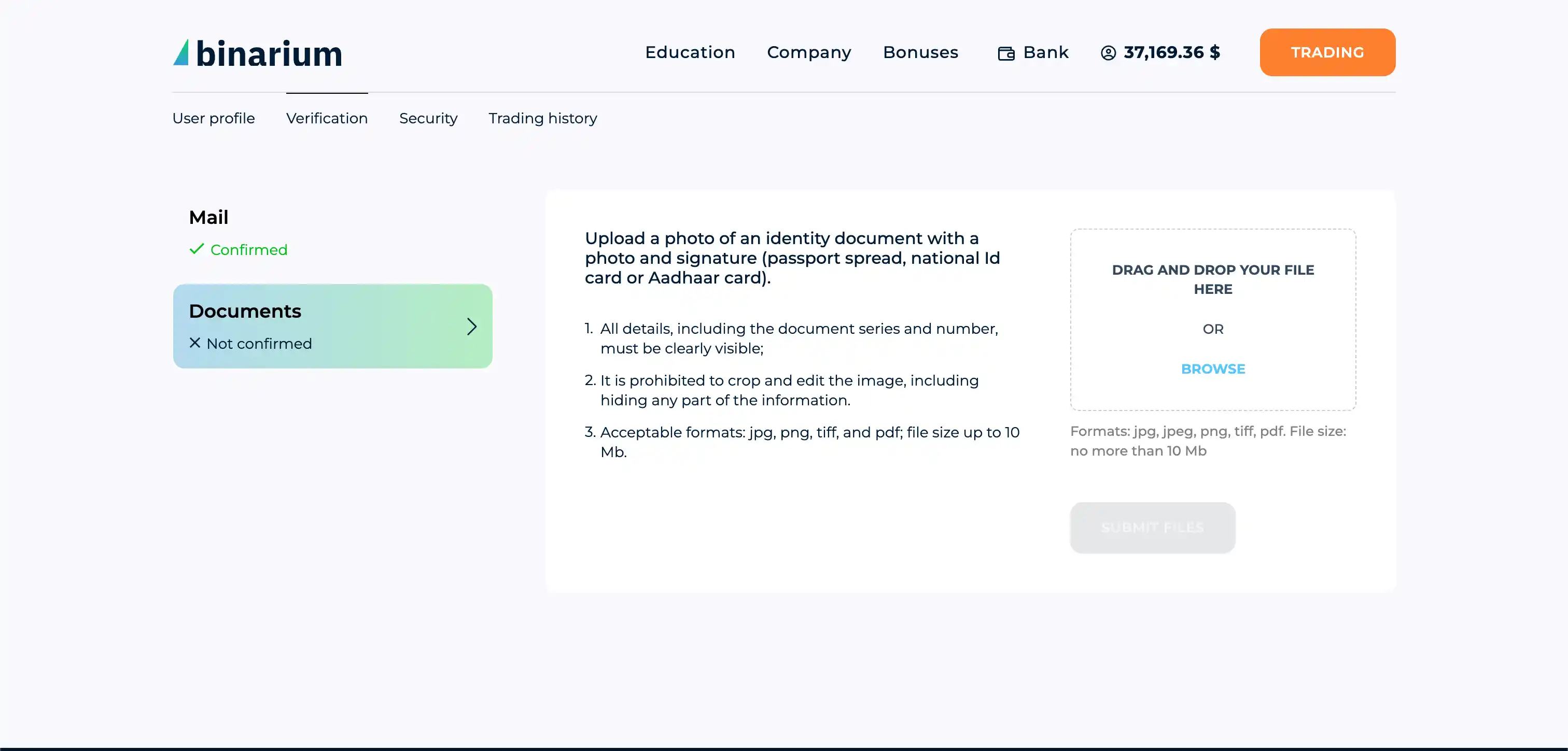
How to pass Binarium verification: step-by-step
Before you start: 2 simple rules
- Profile data = document data (full name, date of birth, country/city — exactly as on the ID).
- Take photos “like for a bank”: sharp, no glare, no cropping, no filters.
Step 1. Check your profile
Compare it with your document:
- full name (as on the document)
- date of birth
- country/city
- address (if you filled it in)
If there’s a mistake in your profile, fix it first. Otherwise you’ll often get “data mismatch”.
Step 2. Prepare your documents (the basics)
Usually they ask for:
- ID (identity): passport / national ID / international passport — check what the form allows;
- Address (Proof of Address): a document showing name + address + date;
- Additional: on request (if they need clarification).
Step 3. Make good photos/scans
- good lighting
- text is readable
- all document edges are visible
- no glare
- no “enhancers” or filters
Step 4. Upload your ID
Select the document type and upload exactly what the dashboard asks for (sometimes: both sides / spread / multiple files).
Step 5. Upload Proof of Address
The document should show:
- your name (matching your profile),
- your address,
- the document date (often it must be “recent”, but follow the exact rule shown in the dashboard).
Step 6. Submit and track the status
Status options usually look like:
- in review
- approved
- rejected
Step 7. If rejected — fix the reason and resubmit
Don’t guess. The reason is usually specific: photo quality, wrong document type, data mismatch.
What documents you need for Binarium verification
I won’t invent a “forever universal list” — it may differ. But the logic is standard. The exact checklist is always shown right in the upload form.
Identity document (ID)
- valid (not expired);
- sharp photo/scan;
- all corners visible;
- data is readable.
Proof of Address
Make sure it clearly shows:
- your name,
- your address,
- the date.
If you don’t have an address document in your name — see “Common situations” below.
Photo/scan and file requirements
Checklist to pass on the first try
- ✅ color photo/scan, no filters
- ✅ all document edges visible
- ✅ no glare or reflections
- ✅ readable text (name, number, dates)
- ✅ document is not expired
- ✅ profile data matches the document
- ✅ Proof of Address: name + address + date visible
- ✅ file meets the upload form requirements
- ✅ you submit documents only via your dashboard
File formats and size: what to check before uploading
I won’t guess exact limits — they can change. Do this instead:
- Open the upload form — it usually shows supported formats and the max file size.
- If the photo is too large, re-save/compress it — but keep text readable.
- Avoid exotic formats — plain photo/scan works best.
- If upload fails, try a different browser or device.
How long review takes and how to read your status
Timelines vary — rely on the hints in your dashboard. Below is a simple guide to statuses and what to do.
| Status | What it means | What to do |
|---|---|---|
| In review | documents are being checked | wait — don’t re-upload every 10 minutes |
| Approved | all good | you can withdraw/continue using the account |
| Rejected | something didn’t meet requirements | fix the reason and resubmit |
If the status stays “in review” for several business days, message support (templates below).
Why verification gets rejected: top reasons and fixes
| Rejection reason | How to fix it |
|---|---|
| Blurry / poor focus | retake in good lighting |
| Glare / reflections | change angle/lighting |
| Edges cropped | move the camera back and capture the whole document |
| Profile data mismatch | fix your profile or submit the correct document |
| Proof of Address not accepted | use a document with name + address + date |
| File rejected | match format/size exactly as shown in the form |
| Key fields hidden | don’t cover essential details |
Common situations (mini-cases)
Case 1: “The utility bill isn’t in my name”
Often this gets rejected because it doesn’t confirm your residence. The solution is to provide a document where you are listed (for example, a statement/document accepted by the upload form).
Case 2: “My bank address differs from my profile”
Bring it to one consistent format:
- either update the profile address to match the document,
- or submit a document that matches the address in your profile.
Case 3: “Files won’t upload”
Try this flow:
- check formats/limits in the form
- re-save the file
- try a different browser/device
- contact support: attach an error screenshot + file size/format
Document security and support
- Upload documents only via your personal dashboard.
- If you’re not sure you’re on the official site, don’t enter your login/password — verify the correct entry path. Here’s a safe-start guide: official entry and how to start without mistakes.
- If you’re still choosing a platform, check “Choosing a broker” and the Binarium page (signup/login) — here.
Red flags
- they ask you to send your passport via Telegram/WhatsApp
- they ask you to install AnyDesk/TeamViewer
- “to withdraw, you must pay a fee via card transfer”
- a link looks “almost real” but has extra characters
What to write to support: 3 short templates
- Status request: “Hello. I submitted documents for verification and the status is ‘in review’. Could you confirm the current status and whether any additional documents are needed? Submission date: __.”
- Rejected: “Hello. My verification was rejected. Please tell me the exact rejection reason and what specifically I need to fix/re-upload.”
- Upload issue: “Hello. I can’t upload a document in the verification section (error __). Please confirm allowed formats and the maximum file size. I’m attaching a screenshot.”
One more thing: if you top up your balance and activate a bonus, use the promo code TREND carefully and check the terms in advance — so you don’t run into withdrawal restrictions later. You can open Binarium here: via this link.
Summary
Binarium verification is mostly about being neat and consistent:
- profile = document;
- sharp photos without glare/cropping;
- address document shows name + address + date;
- upload only via dashboard;
- if rejected — fix the specific reason and resubmit.
FAQ
1) Can I trade on Binarium without verification?
Sometimes yes, but verification often becomes mandatory before withdrawals or for certain actions. It’s calmer to do it in advance.
2) What documents do I need for Binarium verification?
Usually ID + Proof of Address. Check the exact list in the upload form inside your account.
3) Why did Binarium reject my verification?
Most often due to photo quality or a mismatch between your profile data and the document. Fix the issue and re-upload.
4) How long does document review take?
Timelines vary. Follow the status in your dashboard and contact support if it takes too long.
Ready to put this into practice?
Top up your Binarium account and use the promo code TREND to get a +100% bonus and test the strategy.