Binarium demo account: how to open it, where Demo/Real is, and whether you can use it without registration

Promo code: TREND (+100% on your first deposit)
If you’re looking for how to enable demo mode on Binarium and whether you need registration — everything is step-by-step here. We cover both scenarios: when demo is available right away and when you need an account first. Plus: where the Demo/Real switch is usually hidden, how to restore the demo balance, and how not to blow your future deposit while you’re practicing.
What Binarium demo is and who it’s for
A Binarium demo account is a trading mode using virtual funds. It’s useful to:
- learn the terminal fast: where the chart is, how to set amount and expiry;
- practice one clear entry logic without risking real money;
- start a trading journal and build discipline before switching to a real account.
If you’re just getting to know the platform, start with our beginner guide — it explains where to begin in trading overall.
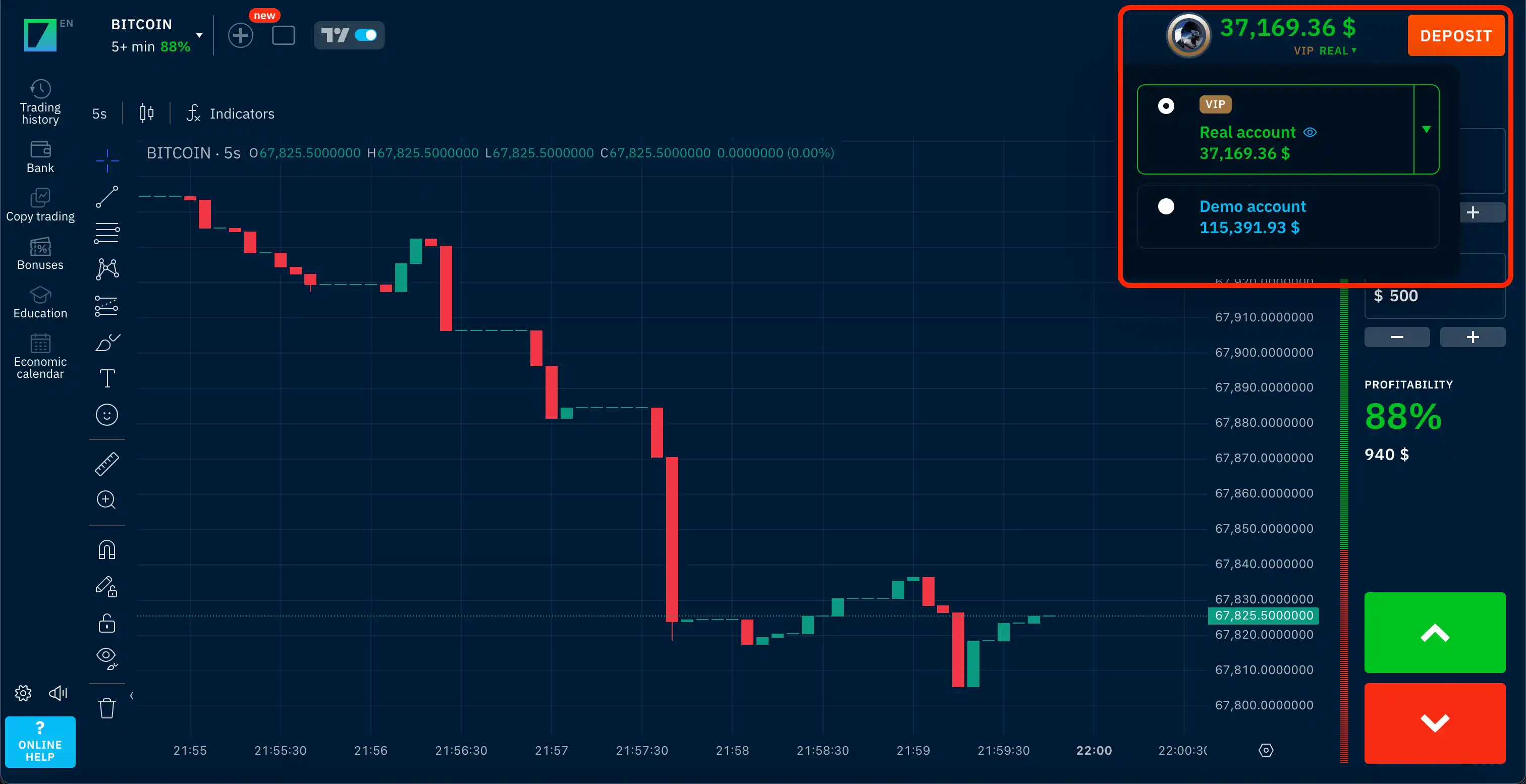
How is demo different from real?
On demo, there’s no fear of losing money, so it’s easier to stay disciplined. On a real account, emotions are much stronger — that’s why demo should train the process, not “guessing.” For more on risk and emotions, read Risk & psychology.
Binarium demo without registration — how to check in 1 minute
A short, honest check in three steps:
- Open the login page or terminal via a trusted route (bookmarks or an official login page).
- Do you see a Demo / Try demo button before login? Then demo is available without registration in the current version.
- Does it ask for email/password or registration right away? Then demo is only available after login.
Important: if there’s a “Demo” button but clicking it still forces login, treat it as “no demo without registration” — the auth step is simply hidden.
How to open a Binarium demo account and enable demo (step-by-step)
Below are two scenarios. Pick yours.
Scenario A: demo is available without registration
- Open the terminal and click Demo.
- Make sure demo mode is active and the balance is virtual (usually shown near the amount).
- Place 1 test trade with the minimum demo amount to confirm everything works.
- Log the result in your trading journal.
Scenario B: demo only after login/registration (most common)
- Click Sign up.
- Create an account (only what the form requires).
- If needed, confirm your email (check Spam/Promotions).
- Log in and open the terminal.
- Find the Demo/Real switch and select Demo.
- Check the demo balance and place 1 test trade.
- Log the trade in your journal.
Want to open an account on Binarium right away? During registration, use promo code TREND — it gives a +100% bonus on your first deposit.
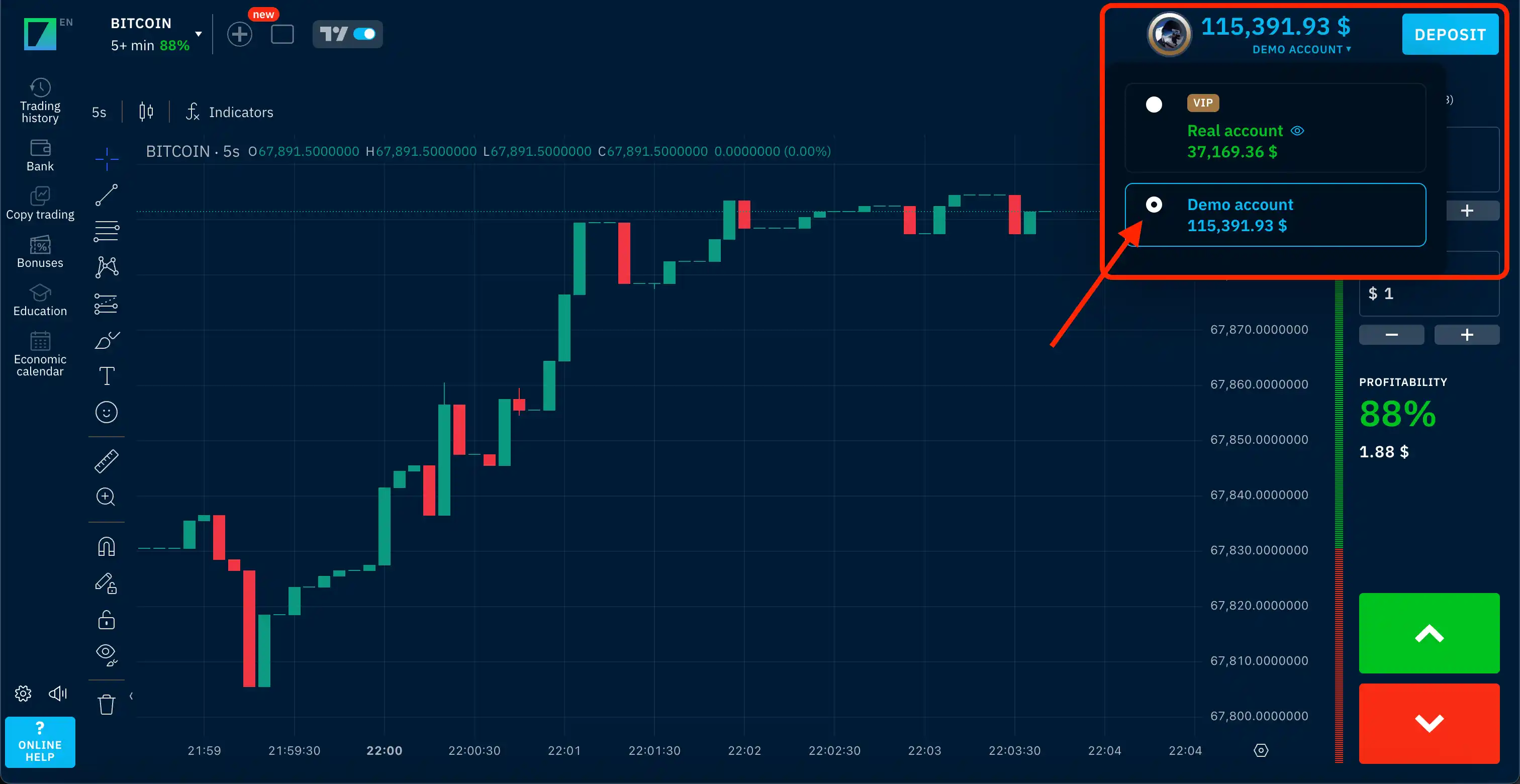
Where to find the Demo/Real switch and demo balance (3 places)
If demo mode isn’t visible right away, the switch is almost always in one of these places:
- Top panel near the balance — the most common option.
- Account / wallet menu — inside the terminal.
- Profile / settings / security — less common, but it happens.
If you can’t find it in 20 seconds, check the screenshot above or contact support.
Binarium demo on mobile and on PC
On PC (browser)
Simple: open → terminal → Demo/Real → Demo.
On mobile
You typically have two options: trading via a mobile browser or via an app (if installed). The logic is the same: look for Demo/Real near the balance or inside the account menu.
How to restore/reset the demo balance (if you “blew” it)
The exact button location may change, so follow these steps:
- Switch to Demo and open the balance/account menu.
- Look for a button like “Top up demo / Reset demo / Restore” in the balance menu or in a “Cashier/Account” section.
- If there’s no button, message support with one question: “How do I restore my demo balance in my account?”
Demo vs Real — what to test and what not to
| Parameter | Demo | Real |
|---|---|---|
| Funds | Virtual | Real |
| Emotions | Low | High — fear, greed |
| Goal | Learn discipline and a strategy | Earn while following rules |
| What to test | Interface, entry logic, discipline | Only a proven setup |
| What not to do | “Yolo” bets and random risk | Test new strategies unprepared |
Want your demo practice to actually pay off? Start with our basics on risk management and trading psychology.
How to practice on demo the right way (checklist)
- Pick 1 asset and don’t scatter your focus.
- Pick 1 timeframe for the whole learning period.
- Pick 1 simple entry logic (one setup).
- Limit the number of trades per day to avoid turning it into gambling.
- After 2–3 losses in a row: pause and review, no revenge trading.
- Keep a trade journal: write down the entry reason and result.
- Measure not profit, but quality of execution.
- Don’t change strategy after a couple of losses — change it only after a proper sample.
- Use a reasonable, consistent stake size even on demo.
- Every 2–3 days, review: what repeats and where you make mistakes.
7-day mini learning plan
| Day | Task |
|---|---|
| 1 | Learn the interface, place 3 test trades without analysis — just to understand the mechanics |
| 2 | Pick 1 asset and 1 timeframe, trade only that |
| 3 | Start a journal: record every trade with your entry reason |
| 4 | Set a daily trade limit (e.g., 5 trades per day) |
| 5 | After 2 losses in a row — mandatory 30-minute break |
| 6 | Review the whole week: what repeats and where you go wrong |
| 7 | Assess: are you following rules consistently? Are you ready for a real account? |
Issues & fixes (if you can’t see demo)
| Issue | Likely cause | Fix |
|---|---|---|
| I can’t see the Demo button | Not logged in | Log in first, then open the terminal |
| No Demo/Real in the menu | Different terminal layout/version | Check profile or settings |
| No balance reset button | Feature hidden or removed | Ask support one clear question |
| Demo works, real doesn’t | Verification not completed | Complete verification in your account |
Safety: how not to end up on a fake site
Before logging into any trading platform, do a quick check:
- The domain matches what you saved before.
- You see https in the address bar.
- The site isn’t aggressively pushing “deposit right now” without any explanations.
Register on Binarium only through a trusted route — and don’t forget promo code TREND to get a +100% bonus on your first deposit.
Summary
A Binarium demo account is a great training tool if you:
- checked whether Binarium demo without registration is actually available (based on the current interface);
- enabled demo via the Demo/Real switch;
- practice with a plan: one strategy + a journal + limits;
- don’t revenge-trade — even with virtual funds.
Once you’ve built discipline on demo, switch to a real Binarium account with promo code TREND — it doubles your first deposit.
FAQ
1) Is the Binarium demo account free?
Yes. The demo uses virtual funds and doesn’t require a deposit. Whether registration is required depends on the current interface — follow the steps in the section above.
2) Can I open a Binarium demo account without registration?
It depends. If the “Demo” button is available before login, yes. If it asks for login right away, you’ll need an account.
3) Where do I enable the demo account on Binarium?
Look for the Demo/Real switch: near the balance, in the account menu, or in profile/settings.
4) What if I can’t see the demo mode?
Log in first and open the terminal. Then check the 3 common locations and the troubleshooting table above.
5) Can I withdraw money from demo?
No. Demo funds are virtual, so withdrawals don’t apply.
6) When should I switch from demo to real?
When you consistently follow rules: one setup, a journal, limits, and the ability to stop after a losing streak. On real money, start with the minimum amounts.
7) Why does it work on demo but not on real?
Real money triggers emotions — fear, greed, and the urge to win back losses. That’s why demo should train discipline, not “guessing” direction.
Ready to apply what you learned?
Fund your Binarium account and use promo code TREND to get a +100% bonus and test your strategy.